
How to review and accept a client's upload in YakFiles
A client upload isn't done until someone has checked it's the right document. Reviewing each file from the request keeps the checklist honest: accepted items count as complete, and the request finishes by itself when every required item is accepted.
Before you start
- A request with at least one client upload
Transcript
Check what a client sent and tick it off their checklist.
On Requests, open the client's request. The checklist shows which items have arrived, and how many are still outstanding.
Under Ready for review, each upload shows which checklist item it's for, its size, and when the client sent it.
If it's the right document, select Accept. The item is marked accepted, and the checklist count goes up. When every required item is accepted, the request completes and reminders stop.
Steps
Open the request ▶ 0:05
In Requests, select the request to open it.
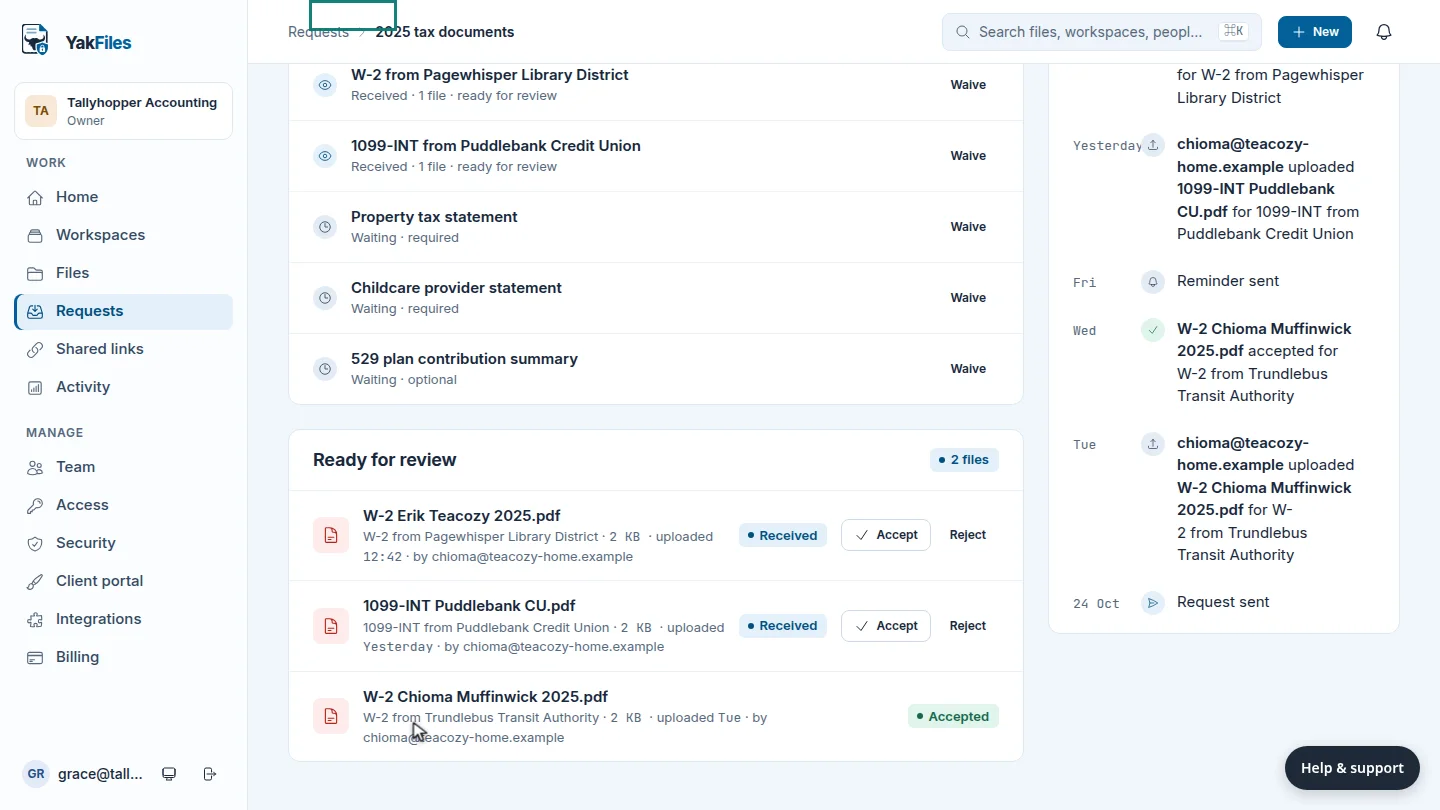
Find the upload ▶ 0:13
Under Ready for review, find the file. Each row shows the checklist item, size and upload time.
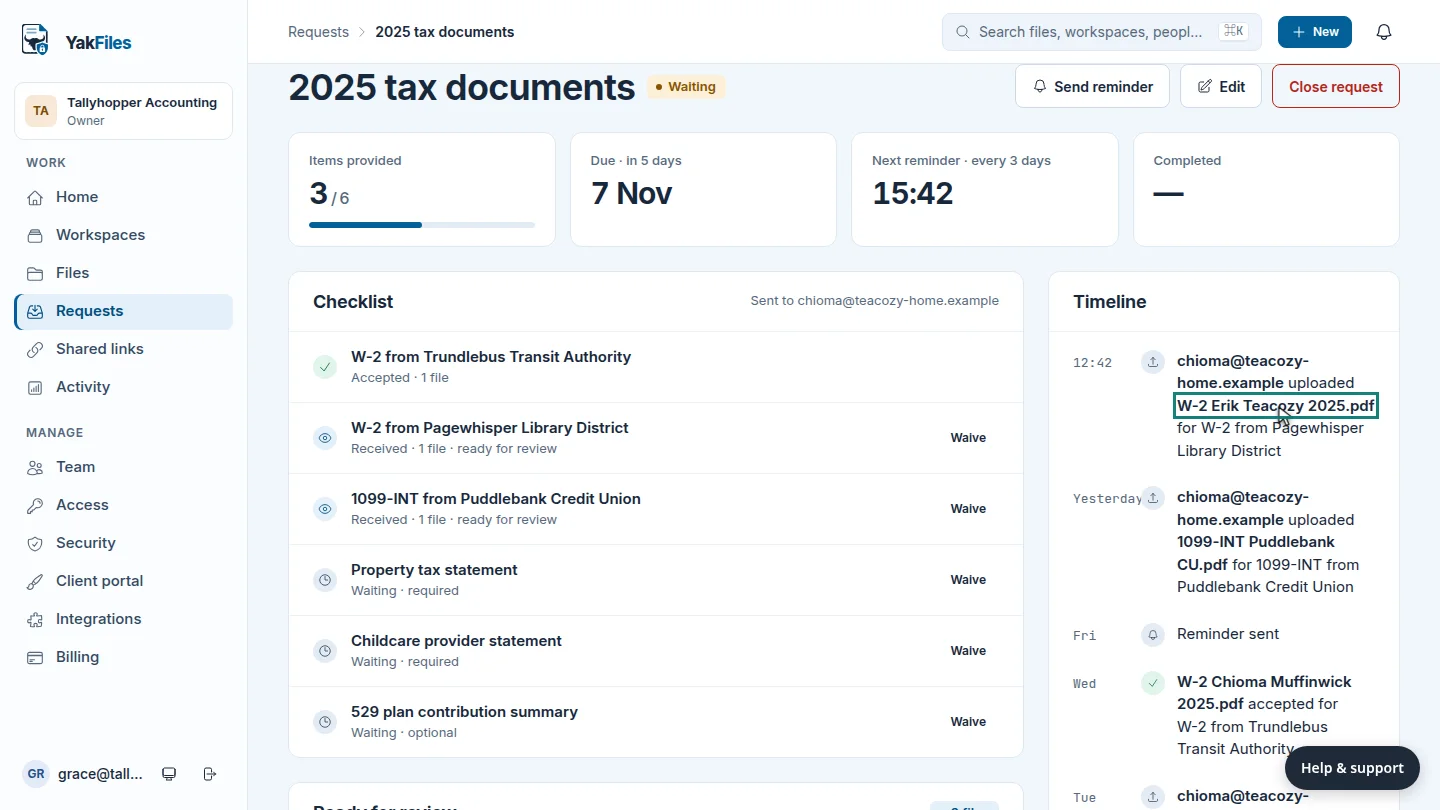
Accept it ▶ 0:20
Select Accept on the file's row. The checklist item changes to Accepted. When every required item is accepted, the request completes and reminders stop.
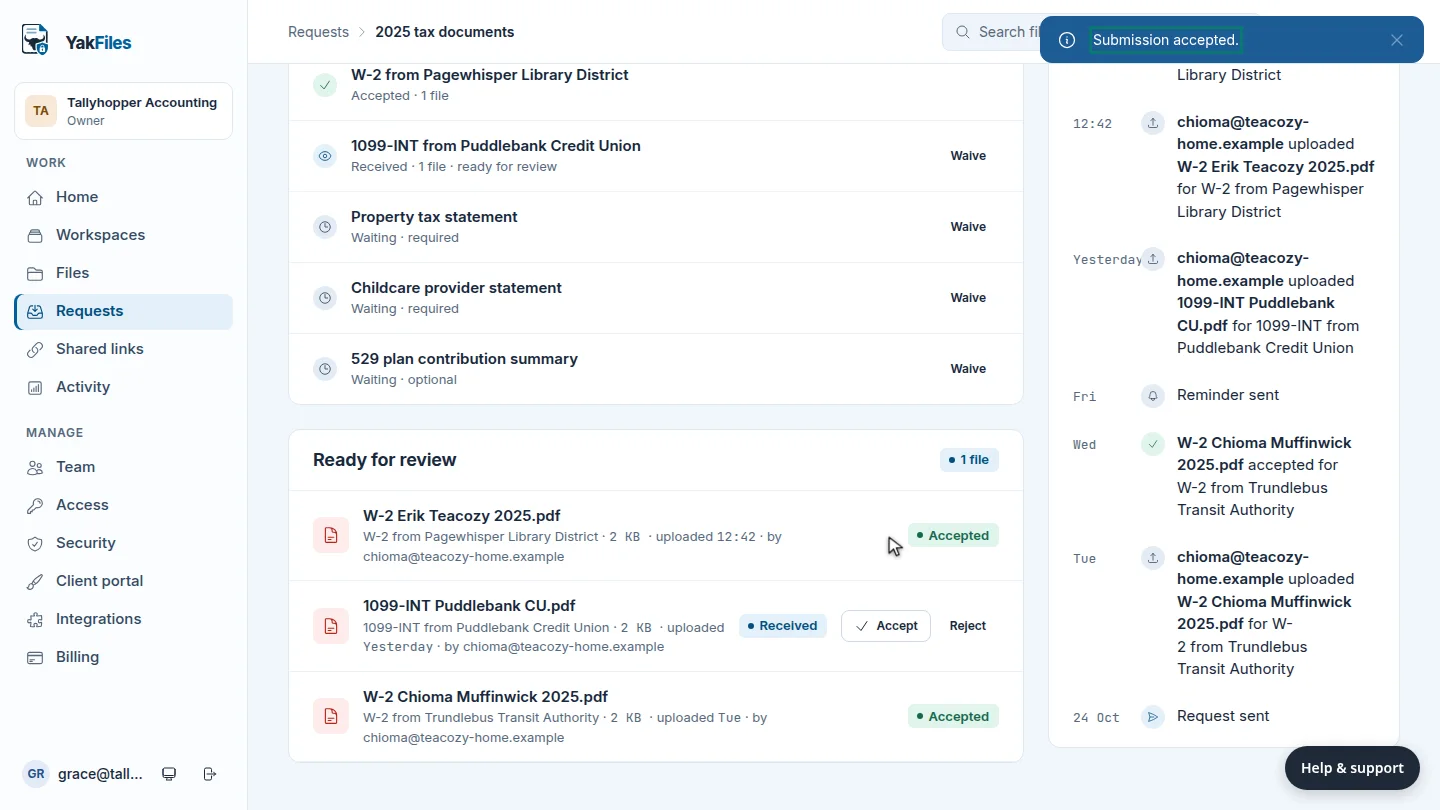
Next steps
Updated 2026-10-26
approve client documents review uploads accept submission checklist progress