
How to invite a colleague to YakFiles
Tax season needs extra hands. Inviting a colleague gives them their own sign-in to your firm's workspaces, so everyone's actions are recorded under their own name.
Before you start
- Owner or admin role
- A free staff seat: Solo includes 1, Team 5 and Firm 10 (pending invitations count)
Transcript
Give a colleague their own sign-in to your firm's YakFiles, so their work is recorded under their name.
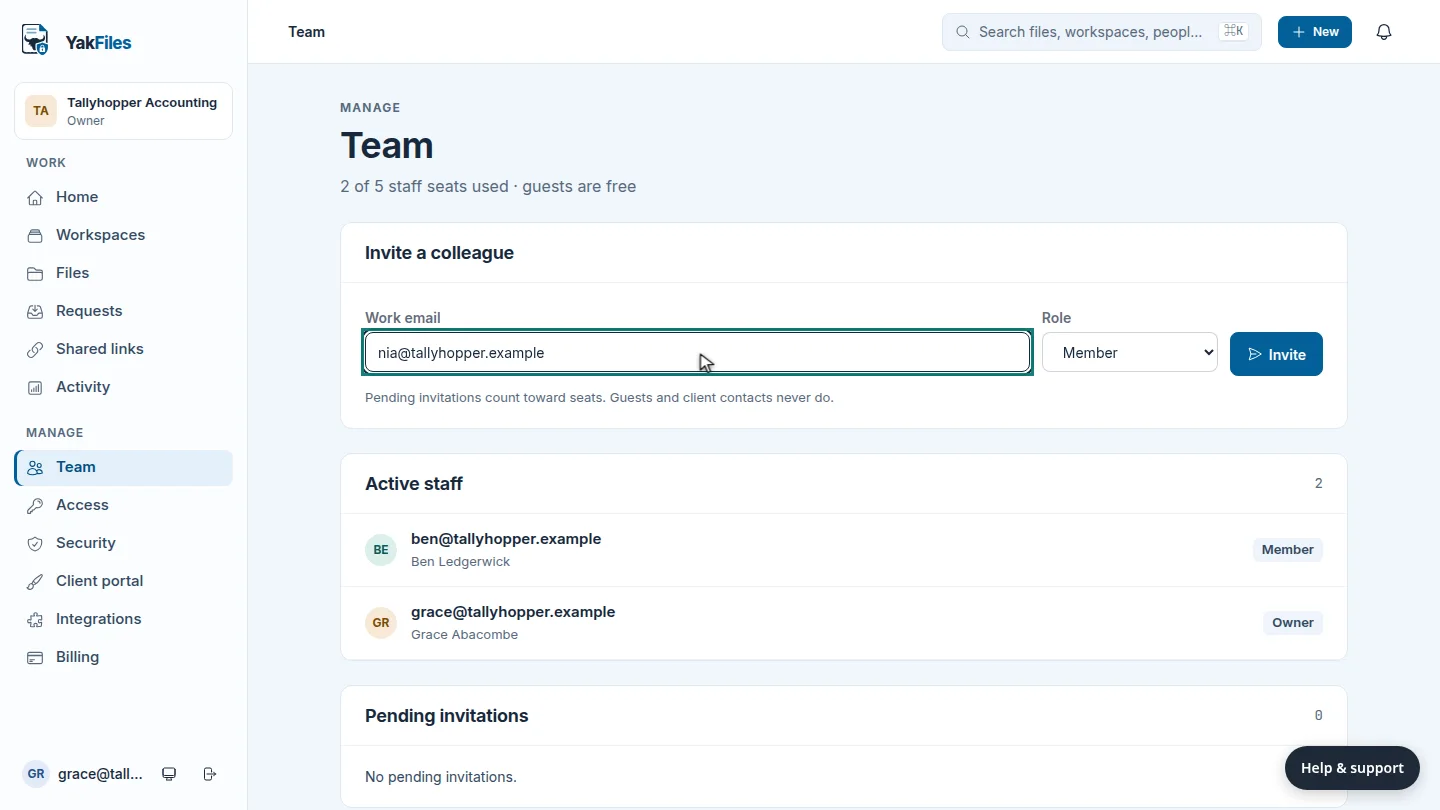
On the Team page, enter your colleague's work email. The page shows how many staff seats you're using.
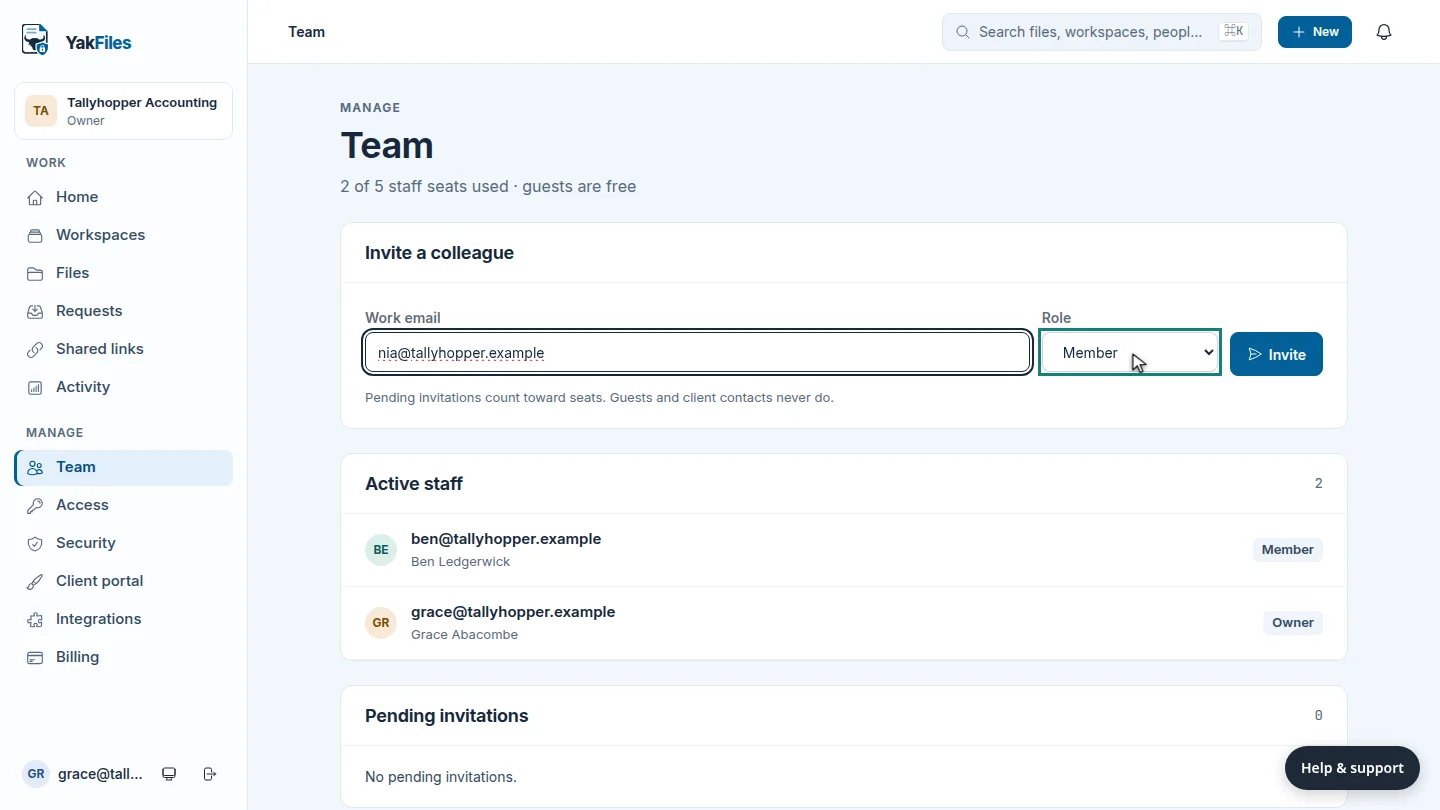
Choose their role. Members work in workspaces; admins can also manage the team and settings.
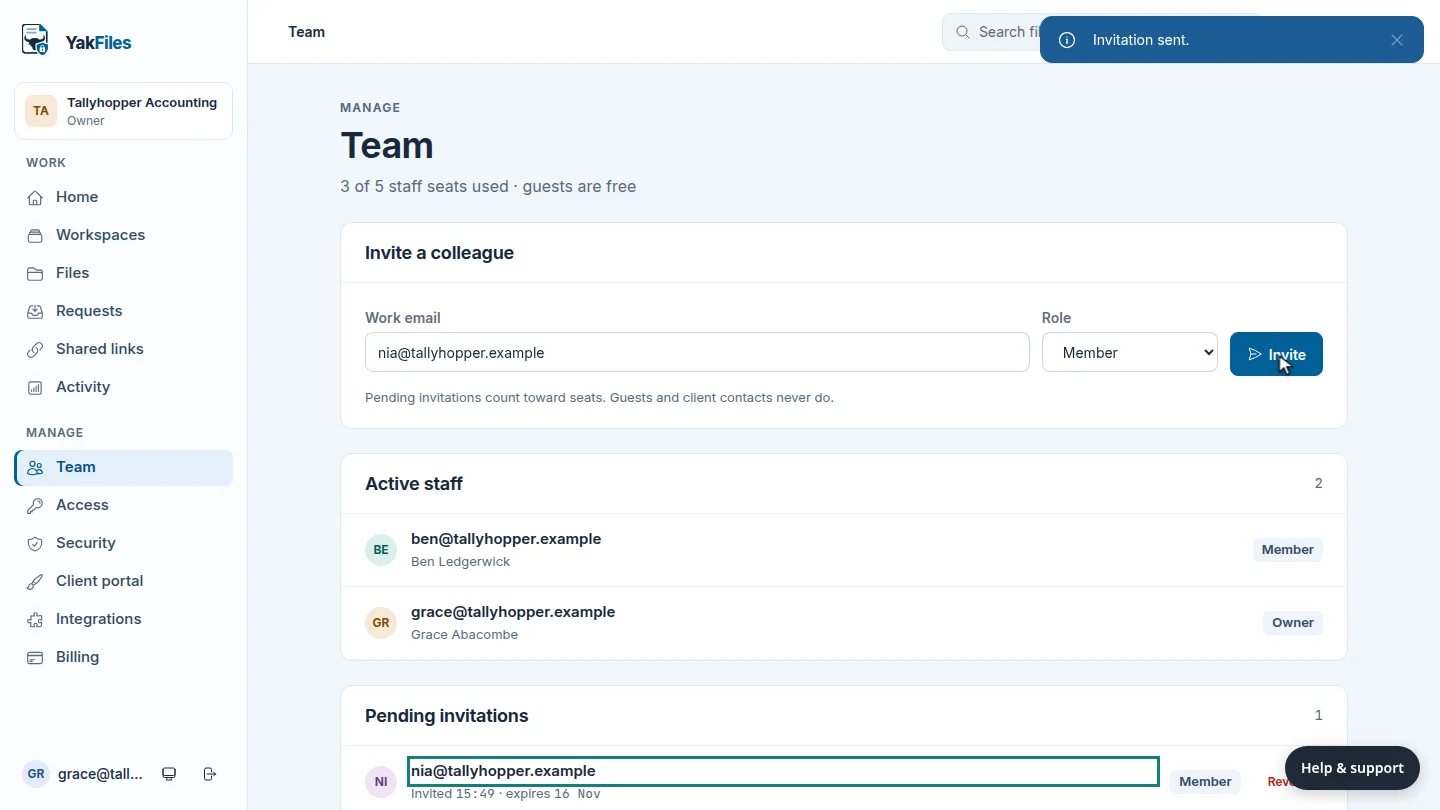
Select Invite. They appear under Pending invitations until they accept the email invitation. A pending invitation already counts toward your staff seats.
Steps
Enter their email ▶ 0:08
In Team, under Invite a colleague, enter the Work email.
Choose a role ▶ 0:14
For Role, choose Member or Admin.
Send the invitation ▶ 0:21
Select Invite. The colleague appears under Pending invitations.
Next steps
Updated 2026-10-26
add user team member staff seat invite staff