
How clients upload documents to a request in YakFiles
Your clients never need a YakFiles account. The link in your request opens a checklist with your firm's name, and each document goes straight onto its own line, so nothing lands in the wrong place.
Before you start
- A request sent to the client (see Request documents from a client)
Transcript
Here's what your client sees when they open a YakFiles request link.
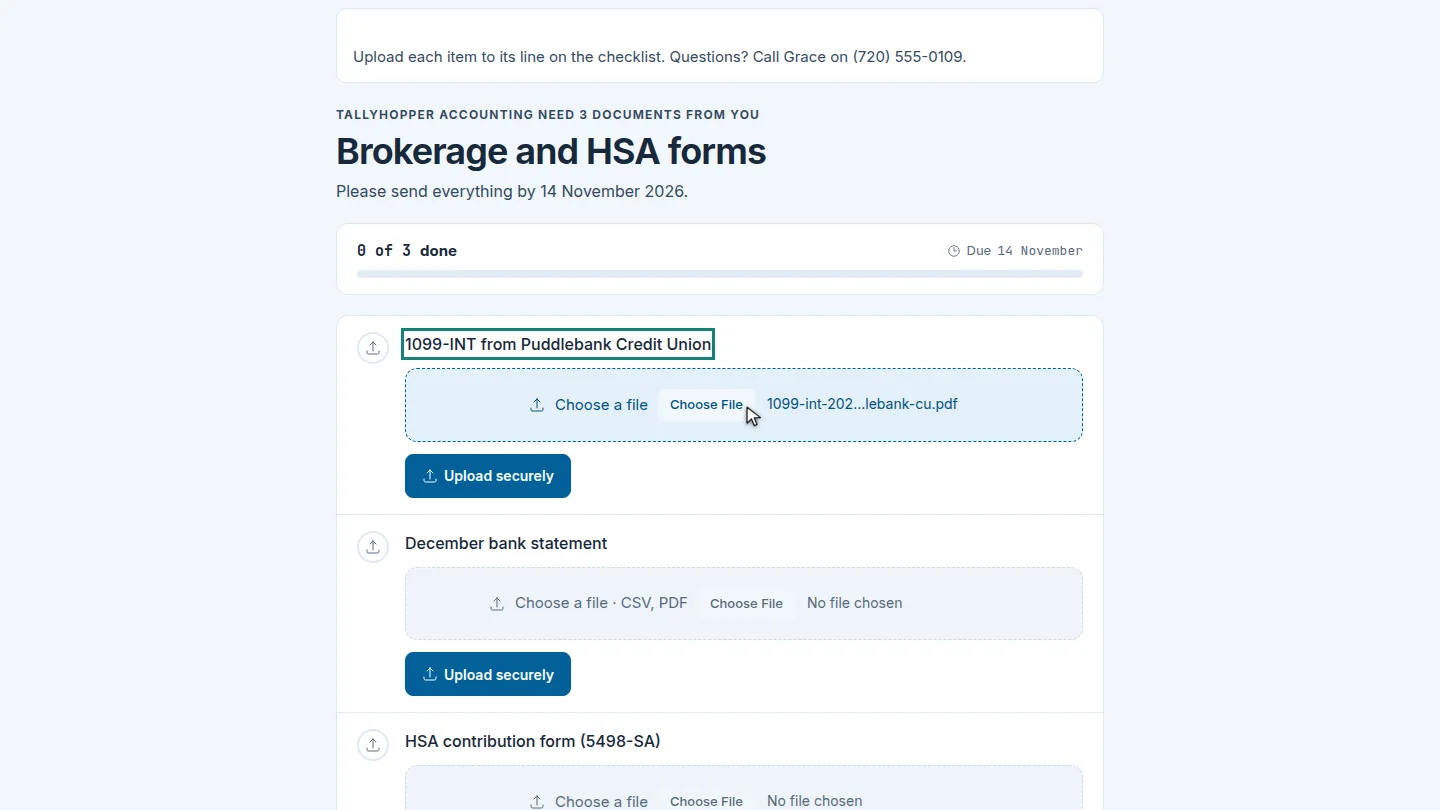
The checklist shows your firm's name and what's still needed. Next to the 1099-INT, the client chooses the file from their computer.
Then they select Upload securely. The file is received and scanned for malware before your firm can open it.
Steps
Choose the file ▶ 0:05
Next to the item, select Choose a file and pick the document.
Upload it ▶ 0:15
Select Upload securely. The status confirms the file was received and is being scanned.
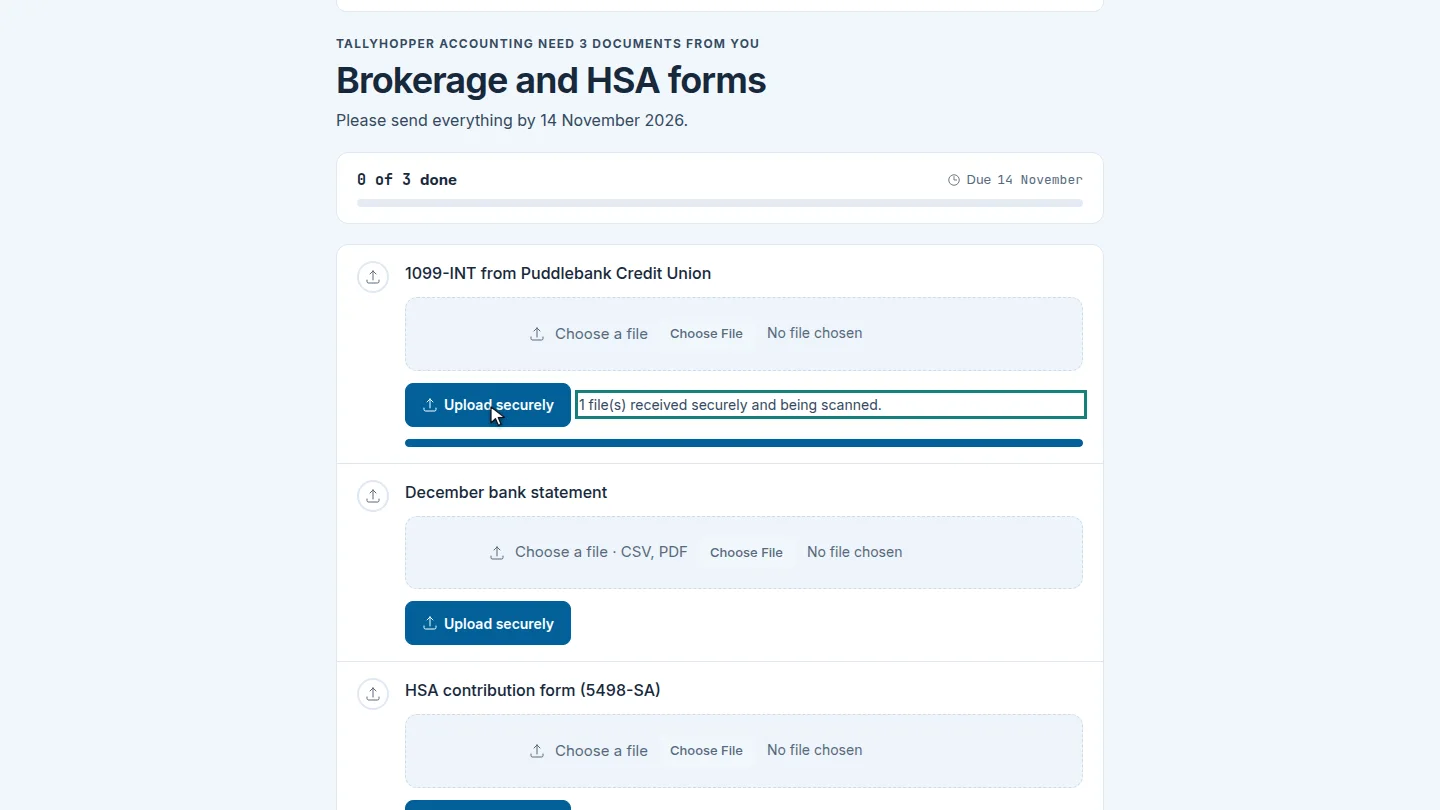
ResultThe status confirms the file was received. The file appears under Ready for review on the request, and the client's checklist shows Received next time they open the link.
Next steps
Updated 2026-10-26
client portal client upload send documents to accountant upload link